- Author: Scott Reilly
- Version: 2.0
- First released: 2011-07-29
- Last update: 2011-07-29
- Compatibility: WP 3.0 – 3.2.1
- Download: [ zip ]
- Description:
Prevent virtual directory listing services from listing the contents of directories, and/or show a page in place of a directory's listing.
-
Extended Description
Prevent virtual directory listing services from listing the contents of directories, and/or show a page in place of a directory’s listing.
The Apache web server can be configured to automatically display the listings of the contents of a web site’s file directory if no index file (i.e. index.html or index.php) is present. This can expose files and information to visitors. Of course the web server could be configured to not do this (the recommended approach), but sometimes you don’t have permission (you’re on a shared host), the know-how, or you want to selectively disallow virtual directory listings. That’s where this plugin can help.
If you want to test if your site has virtual directory listings enabled, try visiting www.YOURSITE.com/wp-includes (obviously, change the domain to match your own). If you see a listing of PHP files then virtual directory listing is enabled for your site.
This plugin can prevent visitors from seeing the contents of certain (or all) directories on your site (assuming your web server generates virtual directory listings). It also allows you to use a WordPress page as the index for a directory
By default, the following directories are protected:
- wp-includes/
- wp-content/
- wp-content/plugins/
- wp-content/themes/
It does NOT protect any other directory by default. You can change this via the plugin’s admin settings page.
TIP: When this plugin is activated (and more specifically, ater the permalink structure is updated as per the instructions below), WordPress will generate the themed 404 – Not Found page. If you were to create a Page with the same name as one of the directories being disabled (i.e. ‘wp-includes’ or ‘wp-content’) then that page will be displayed instead of the 404 error message. If you want to display a page for the ‘plugins’ and ‘themes’ directory, you must create them as children pages of a ‘wp-content’ page.
NOTE: This plugin only works for the Apache web server.
Links: Plugin Homepage | Author Homepage
Find out more at the plugin’s WordPress Plugin Repository page.
-
Screenshots
Click to see full-size image.
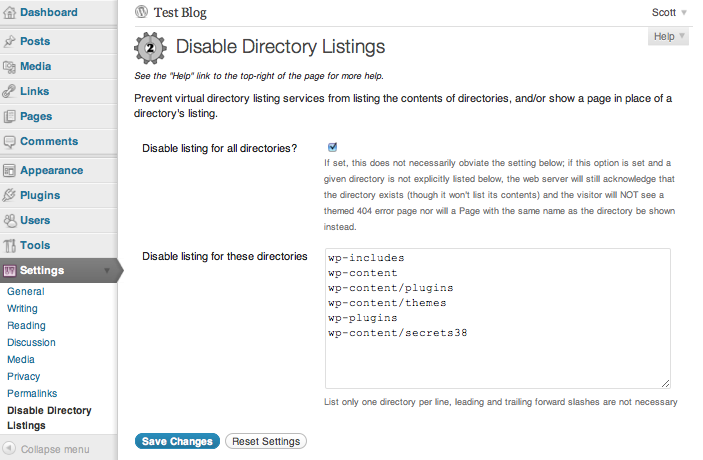
A screenshot of the plugin’s admin options page.
-
Installation
- Unzip
disable-directory-listings.zipinside the/wp-content/plugins/directory for your site (or install via the built-in WordPress plugin installer) - Activate the plugin through the ‘Plugins’ admin menu in WordPress
- Go to
Settings->Directory Listingsadmin options page. Optionally customize the list of directories. - If the plugin’s admin options page says that your .htaccess file is not writable, then you must manually update your .htaccess file with the changes it has made. Go to the
Settings->Directory Listingsadmin options page and follow the instructions to update your .htaccess.
Note: If your .htaccess is not writable, then you must perform step 4 when activating or deactivating the plugin, and when updating the plugin’s options. Otherwise, step 4 is not necessary.
- Unzip
-
Frequently Asked Questions
Q. How do I make a WordPress page appear when a user tries to access a directory on my site?
A. Create a page (not post) with the same name as the directory. And ensure the directory is listed in the plugin’s settings (found atSettings -> Directory Listings). If the directory you wish to create a page for is below another directory (relative to the root directory of your site) such aswp-content/plugins, then you must first create a page namedwp-content, and then a page namedpluginswhich you need to make a child page ofwp-content.Q. I’ve activated the plugin but I can still see the directory listing for one of the directories protected by default; what gives?
A. Is your .htaccess writable? Visit the plugin’s options page,Settings -> Directory Listings, to check and find out more info.Q. Can’t I just configure Apache directly via its .conf file to prevent directory listings?
A. Yes. Assuming you already have virtual directory listing enabled and have edit/write capabilities on Apache’s httpd.conf file (or the .conf file containing the configuration for your site) you could remove theIndexesoption, so that, for example:Options All Indexes FollowSymLinks MultiViewsbecomes
Options All FollowSymLinks MultiViewsOr you could add:
Options -IndexesIf you have the capability and knowledge to do this, that’s great and I urge you to do so. However, if you don’t have that capability because you are on a shared host and can’t edit Apache’s httpd.conf file, or you want some easier, fine-grained controls, you can give this plugin a shot.
-
Release Log
2.0
- Use plugin framework v026, which among other things adds support for:
- Reset of options to default values
- Better sanitization of input values
- Offload core/basic functionality to generic plugin framework
- Additional hooks for various stages/places of plugin operation
- Easier localization support
- Full localization support
- Update can_write_htaccess() to recognize (but not support) IIS7
- Add admin notice after plugin activation to warn user that rewrite rules need to be regenerated if their .htaccess isn’t writable
- Add __construct(), activation(), uninstall(), load_config(), register_filters(), install(), maybe_regenerate_rewrite_rules(), display_activation_notice(), options_page_description()
- Rename deinstall() to deactivate()
- Change handling of activation and deactivation
- Save a static version of itself in class variable $instance
- Deprecate use of global variable $disable_directory_listings to store instance
- Rename class from ‘DisableDirectoryListings’ to ‘c2c_DisableDirectoryListings’
- Remove docs from top of plugin file (all that and more are in readme.txt)
- Note compatibility with WP 3.0+ through WP 3.2+
- Drop compatibility with versions of WP older than 3.0
- Explicitly declare all class functions public
- Add PHPDoc documentation
- Add package info to top of plugin file
- Add ‘Text Domain’ header tag
- Improve documentation
- Change description
- Add Changelog and Upgrade Notice sections to readme.txt
- Add screenshot
- Update copyright date (2011)
- Add .pot file
1.0
- Initial release
- Use plugin framework v026, which among other things adds support for:
-
Copyright & Disclaimer
Copyright © 2011-2024 by Scott Reilly (aka coffee2code)This program is free software; you can redistribute it and/or
modify it under the terms of the GNU General Public License
as published by the Free Software Foundation; either version 2
of the License, or (at your option) any later version.This program is distributed in the hope that it will be useful,
but WITHOUT ANY WARRANTY; without even the implied warranty of
MERCHANTABILITY or FITNESS FOR A PARTICULAR PURPOSE. See the
GNU General Public License for more details.You should have received a copy of the GNU General Public License
along with this program; if not, write to the Free Software
Foundation, Inc., 51 Franklin Street, Fifth Floor, Boston, MA 02110-1301, USA. -
Discussion / Support
Have any questions, comments, or suggestions? Please provide them via the plugin’s WordPress.org support forum. I’ll do my best to reply in a timely fashion and help as best I can.
Unfortunately, I cannot provide guaranteed support, nor do I provide support via any other means.
Was this plugin useful useful to you? Consider giving it a rating. If you’re inclined to give it a poor rating, please first post to the support forum to give me a chance to address or explain the situation.
Categories
2 replies on “Disable Directory Listings”
[…] WordPress Plugin Disable Directory Listings von Scott Reilly verhindert das Besucher den Inhalt von Verzeichnissen listen können falls […]
[…] des répertoires de votre serveur est une des autres possibilités de sécurisation. Le plugin Disable Directory Listings permet de faire ça. A ce propos, le site de ce développeur regorge de plugins […]